Showing posts with label Inventory Functional. Show all posts

Monday, February 2, 2015

R12 Inventory Month End Period End Process

  • Generally, We should open and close periods for each separate inventory organization independently. 
  • Inventory and work in process transactions automatically create accounting entries. All accounting entries have transaction dates that belong in one accounting period. We can report and reconcile Our transaction activity to an accounting period and General Ledger. We can transfer summary or detail transactions to General Ledger. We can transfer these entries to General Ledger when We close the period or perform interim transfers.
  • When We transfer to General Ledger, a general ledger (GL) batch ID and organization code are sent with the transferred entries. We can review and report the GL batch number in General Ledger and request Inventory and Work in Process reports by the same batch number. We can also view general ledger transfers in Inventory and drill down by GL batch ID into the inventory and WIP accounting distributions.
  • The period close process permanently closes an open period. We can no longer charge transactions to a closed period. Once We close a period, it cannot be reopened. As a precaution, We can do a GL transfer without closing the period.
  • If inventory organization’s parameter for Transfer to GL is None, accounting entries are not transferred to the General Ledger. 
 Oracle Inventory uses accounting periods to group material transactions and work in process transactions for accounting purposes. So normally these deatils are grouped for a month and the transaction details are posted to GL.

An automatic general ledger transfer is processed when We close an accounting period.

Pending transactions:

Before closing the inventory Period make sure all pending transactions are resolved. In pending transaction form we can see all pending transactions or while trying to close the period, automatically system will display all pending transaction information. In pending transactions we can find number of unprocessed material transactions, uncosted material transactions, and pending WIP costing transactions existing in this period. These must be resolved before the period is closed.

Resolution Recommended  on  pending receiving transactions,pending material transactions, and pending shop floor move transactions existing in this period.

Inventory Resp --> Transactions --> Pending Transactions 

Close a open/error status period :


Inventory Resp  --> Accounting Close Cycle --> Inventory Accounting Periods


***************************************************************
For Online And Classroom Training on 
R12 SCM Functional
Fusion Procurement
Fusion SCM
Fusion Procure To Pay
Please Contact -
Gmail # rishitechnologies9@gmail.com
Cell # 9071883639

Tuesday, March 27, 2012

R12 - Cycle Counting

What is Cycle Counting?

Cycle Counting  is a process of periodic counting of individual item / all the items  throughout the course of the
year to ensure the accuracy of inventory quantities and values.

We can do the cycle counting at Organization / Sub Inventory Level.

What is ABC Analysis?

ABC analysis is used determines the relative value of a group of inventory items based on a
user-specified criteria. "ABC" refers to the rankings you assign your items as
a result of this analysis, where "A" items are ranked higher than "B" items, and so on.

1. Define ABC Compile

ABC Codes --> ABC Compile ( Select Organization for which you are planning to compile the items. Ex : M1 ).  --> Click on New

Enter the name and scope of compile ( organization or inventory level ) and enter the criterion.

Click on Compile. system will compile / calculate the number of item within the organization and value of the items.

2 conc prorams will run in back end " Compile ABC analysis" and "ABC descending value report".

Open the output of ""ABC descending value report",we will find the items information within the organization.


2. Define ABC Classes.


In the above example i have created  LS_A , B , C Classes. That means, all high volume / value items, we have to assign to LS_A Class, all medium volume / value items to LS_B Class.

3. Define ABC Assignment Group.

ABC Codes -->  ABC Assignment Groups    

Create New Group "TEST_ASSIGN_GROUP" and assign earlier created ABC Compile called "TEST_COMPILE" to this Group.


Click on Group Classes Button, to assign earlier created ABC Classes to this Group.


Click on Assign Items Button, Assign all the items from compile "TEST_COMPILE" to these 3 classes and save. Once save the records, in back end conc program "Define ABC assignments" will run.
( "ABC descending value report" will display items in descending order based Quantity and value). In our example i am assigning top 10 items to the class LS_A and top 11 to 99 items to class LS_B and renaming to class LS_C.


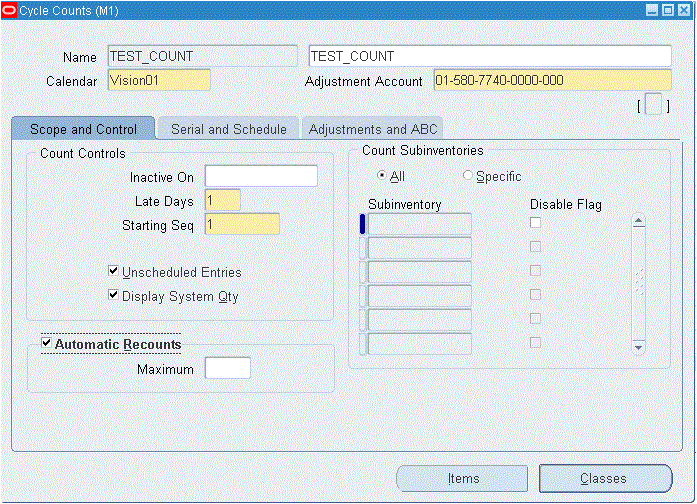
4. Define Cycle Count .

Counting --> Cycle Counting --> Cycle Counts.

Click On New to create new cycle count for organization M1.


Check the check box called Auto Schedule to schedule the counting.


Click on Adjustment and ABC Tab and assign ABC assignment Group Name and save. Once we save the record, in back end Conc. Program "Initialize cycle count items" will run.


Click on Classes Button and enter number of times we are planning to count the items from ABC Classes per Year and save.


Click on Item Button ( in Adjustment and ABC Tab ) and all the item from ABC Classes are populated automatically.
 5. Manual Scheduling of Cycle Counting.

We can schedule all the items from cycle count or only few items from cycle count. for our demo purpose i am scheduling Item "MC31324 ".

Counting --> Cycle Counting --> Cycle Counts  --> Search for "TEST_COUNT" and click on Schedule Button

Or

Counting --> Cycle Counting  --> Manual Requests --> Enter Cycle Count name and click on find.
Enter Item Name and save.


 6. Request for Cycle Counting.

Open Cycle Count Form and Query with Cycle Count "TEST_COUNT".  Go to Tools --> Cilck on Generate Count Requests.  In Backend "Generate cycle count requests" Program will run.


Open Cycle Count form and Query With Cycle Count "TEST_COUNT" and click on Counts Button to see the on hand Quantity of the item in system. In our Example, on hand Qty in system for Item "MC31324' = 50000.


Cross verify the on hand of the item.

on-hand Quantity, Availability --> On-hand Quantity and search with item "MC31324".

7. we have to do manual counting for Item "MC31324" in organization "M1".

After counting the item manually in M1, we found that on hand qty of the item is 50090. that means 90 items are less in oracle inventory system. So we have to do adjustment for that item in system to synchronize the system OHQ and Actual OHQ

8. Adjustments.

Open Cycle Count form and Query With Cycle Count "TEST_COUNT" and click on Counts Button and click on Adjustment Tab and enter Count Quantity = 50090 . ( System will update the Adjustment Quantity = 90 ) and Save.


9. Verify the OHQ On the Item. Now OHQ in System  = 50090.


***************************************************************
For Online And Classroom Training on 
R12 SCM Functional
Fusion Procurement
Fusion SCM
Fusion Procure To Pay
Please Contact -
Gmail # rishitechnologies9@gmail.com
Cell # 9071883639

Monday, March 26, 2012

Cycle Counting Overview


Today i am posting Overview Of Cycle Counting in Inventory. In next post, We will discuss in detail.


***************************************************************
For Online And Classroom Training on 
R12 SCM Functional
Fusion Procurement
Fusion SCM
Fusion Procure To Pay
Please Contact -
Gmail # rishitechnologies9@gmail.com
Cell # 9071883639

Tuesday, February 1, 2011

Creation Of Master Organization

Today we will see creation of master organization.

Inventory Responsibility --> setup --> Organizations -->Organizations
Click on New

Enter Organization name and location and save your work.


Enter Name as "Inventory Organization" under organization classification and check the "Enabled" check box.


 Click On others button and select "Accounting Information"and OK.


Enter ledger ,legal entity and operating nit information and click on OK -- OK --Save.


Click On others button and select "Inventory Information"and OK.


Enter Proper information in "Organization Parameters" window . Its a 6 tabbed region window.

In Inventory Parameter tab -- > Master organization Name = Your newly created organization name.


Costing Information Tab --> costing method = Standard


Revision,Lot,Serial tab --> Starting serial number = 0009


Other Accounts Tab --> Enter accounts information. you will get these accounts information from your finance team.


Click on save . You will get one pop up message. read thoroughly and click on OK.


In later session we will discuss all the options available in inventory parameters window in detail.


Provide me comments if you like my post.

Saturday, January 29, 2011

Creation Of Locations

Setup --> Organizations --> Locations

Name                : SR_Loc1
Address Style    : India
Address            : Enter Proper Address   ----> Save