Tuesday, February 28, 2012

R12 - API To Assign Catalog Group To Item

Hi All,

Here is the process to attach catalog group to an item through interface.

1. Insert the data into mtl_system_items_interface.

      INSERT INTO mtl_system_items_interface
                 (inventory_item_id,
                  organization_id,
                  process_flag,
                  set_process_id,
                  transaction_type,
                  item_catalog_group_id
                  )
            VALUES
                 (9999,
                  207,
                  1,
                  1,
                  'UPDATE',
                 9
                  );

2. Run Item Import Program.

Fnd_Request.submit_request (
                       application   => 'INV',
                       Program       => 'INCOIN',
                       description   => NULL,
                       start_time    => SYSDATE,
                       sub_request   => FALSE,
                       argument1     => v_organization_id,
                       argument2     => 1,           
                       argument3     => 1,  --Group ID option (All)
                       argument4     => 1,  -- Group ID Dummy
                       argument5     => 1,  -- Delete processed Record 
                       argument6     => 1,  -- Set Process id                   
                       argument7     => 2   -- Update item
                       );


Wednesday, February 22, 2012

R12 - API to Create Oracle Sub Inventories

Hi All,

There is no API available to create Sub Inventories in oracle. We have to directly update the   mtl_secondary_inventories by using API callled : mtl_secondary_inventories_pkg.insert_row.

Monday, January 16, 2012

R12 - API To Create Locators In Inventory

Hi,
Today i am posting the sample code to create Locators in Inventory.


Data File :
------------------------------


ORGANIZATION_CODE|SEGMENT1|SEGMENT2|SEGMENT3|SEGMENT4|DECRIPTION|SUBINVENTORY|
M1|2|2|2|2|DESCRIPTION_1|Stores|
M1|3|3|3|3|DESCRIPTION_1|Stores|
M1|4|4|4|4|DESCRIPTION_1|Staging|
M1|5|5|5|5|DESCRIPTION_1|Staging|

-----------------------------------------------------


DECLARE
l_msg_data              VARCHAR2(100);
l_msg_count             NUMBER;
l_return_status         VARCHAR2(1);
l_locator_id            NUMBER;
l_locator_exists        VARCHAR2(1);
l_org_id                NUMBER := 207;
l_organization_code     VARCHAR2(10) := 'M1';
l_sub_code              VARCHAR2(10) ;
l_concatenated_segments VARCHAR2(100); /

BEGIN

    l_concatenated_segments := '2.2.2.2';  --  SEGMENT1.SEGMENT2.SEGMENT3.SEGMENT4
    l_sub_code := 'Stores';
    l_org_id:= 141;

    INV_LOC_WMS_PUB.CREATE_LOCATOR(
            x_return_status             => l_return_status,
            x_msg_count                 => l_msg_count,
            x_msg_data                  => l_msg_data,
            x_inventory_location_id     => l_locator_id,
            x_locator_exists            => l_locator_exists,
            p_organization_id           => l_org_id,
            p_organization_code         => l_organization_code,
            p_concatenated_segments     => l_concatenated_segments,
            p_description               => 'TEST',
            p_inventory_location_type   => 3,         -- Storage locator
            p_picking_order             => NULL,
            p_location_maximum_units    => NULL,
            p_subinventory_code         => l_sub_code,
            p_location_weight_uom_code  => NULL,
            p_max_weight                => NULL,
            p_volume_uom_code           => NULL,
            p_max_cubic_area            => NULL,
            p_x_coordinate              => NULL,
            p_y_coordinate              => NULL,
            p_z_coordinate              => NULL,
            p_physical_location_id      => NULL,
            p_pick_uom_code             => NULL,
            p_dimension_uom_code        => NULL,
            p_length                    => NULL,
            p_width                     => NULL,
            p_height                    => NULL,
            p_status_id                 => 1, -- Default status 'Active'
            p_dropping_order            => NULL
            );
         
         
       DBMS_OUTPUT.PUT_LINE('Return Status '||l_concatenated_segments||' - '||l_return_status);
     
END;

Friday, August 26, 2011

R12 - AP Auto Invoice Creation

Hi friends,

Today we will see how to allow system to create invoice automatically upon reciept.

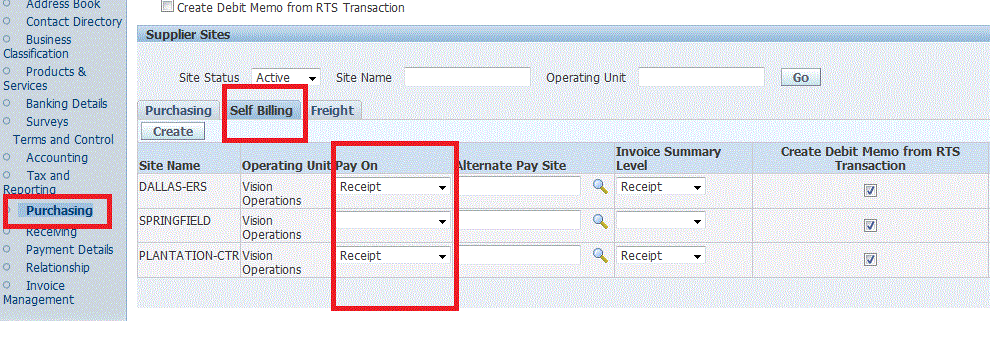
1. By Using Self Billing :

By Using selg Billing tab in supplier form, we can create standard invoice upon receipt.

Navigation : Payable responsibility --> Suppliers --> Entry

Query with supplier name . Ex : Supplier Name : Consolidated Supplies

After query with supplier, clisk on purchasing  --> Self Billing Tab

Select Pay On = Reciept  --  This means upon completion of reciepts , system automatically create the STANDARD Invoice.


System will create standard invoice automaticaly and invoice number generation is depends on the value entered in Profile :  PO: ERS Invoice Number Prefix

2. By Using  "


Thursday, August 25, 2011

R12 - Merging Suppliers


Use the Supplier Merge program to maintain your supplier records. You can use it to merge duplicate suppliers into a single, consolidated supplier and to merge transactions within the same supplier from one supplier site to a different supplier site. You can choose to merge all transactions for a supplier into a new supplier, or you can just choose to merge unpaid invoices.

Merging suppliers is an irreversible action. You cannot reverse the merge once it has completed. Before you initiate the merge program, you should be sure that the action you want to take is final.

Refer the below screen schot. supplier XXDell is having 2 supplier sire Marina and Sam Francisco. Now we are going to merge Marina supplier site.


Run the Supplier Merge Program :
Navigation : Payables responsibility --> Suppliers --> Suppliers Merge

Select the From and To Information and Click on Merge Button. Once you click on Merge, " Supplier Merge Program " will run in back end.  Once Concurrent program " Supplier Merge Program " was ran succesfully verify the supplier information. Now you can find only one site " San Francisco ".


While merging, we need to decide the effect the merge on existing purchase orders and invoices. 

         For purchase orders, we need indicate whether we want all or none of the existing purchase orders to be updated with the new supplier/site names by checking or unchecking the PO Check Box.
         For invoices, we can indicate whether we want all, only unpaid, or none of the invoices to be updated with the new supplier/site names.


Supplier Level Vs Supplier Site Level Entries


Refer the above diagram and notice that information on the Organization, Contact Directory, Business Classification, Products and Services, Surveys, Receiving, and Payment Details pages is entered only at the supplier level.
Information on the Address Book page is entered only at the supplier site level.
If Multiple Organization Support feature has been enabled, the Accounting page is also entered only at the site level.

Flow Of Default Values in Payables


  •  Defaults set at higher levels flow down to lower levels where you can override them. 

  • Defaults reduce data entry by providing default values

Note : Changes to default values affect only new records, not existing records.  For example, if payment terms in the Payables Options window are reset to Net 30 from Net 45, new suppliers will have a default of Net 30.  Existing suppliers will have terms of Net 45.

Updating Supplier and Supplier Site Defaults :

For example, if you change the Pay Group for a supplier site, the new Pay Group will default to new invoices you enter, but the change will not affect existing invoices. Also, if you change a supplier value that defaults to supplier sites, the change will only affect new supplier sites you create, but the change will not affect existing supplier sites. Therefore, the change will not affect documents you subsequently create for existing supplier sites. If you want a change to affect documents you enter or create for an existing supplier site, be sure to make the changes at the supplier site level.