Wednesday, November 12, 2014

How to Setup Default values for Create Accounting Program


Go to GL Responsibility > Setups > Financials > Accounting Setup Manager > Accounting Setup

1. Search With Ledger Name.
2. Click On "Update Accounting Options" Button.
3. Clisk On "Update" Button Of "Subledger Accounting Options".
4. Click On "Update Accounting Options" Of corresponding Application.
5. Select All the default parameter values for " Create Accounting" Program.


***************************************************************
For Online And Classroom Training on 
R12 SCM Functional
Fusion Procurement
Fusion SCM
Fusion Procure To Pay
Please Contact -
Gmail # rishitechnologies9@gmail.com
Cell # 9071883639

Wednesday, May 16, 2012

Enable/Disable the Concurrent Program Parameters

HI Friends,

Here is the requirement.

1. I want to enable/disable concurrent program parameter based on other parameter value. Ex : If value for parameter1 is "Summary" i have to enable the parameter2 and if the value for parameter1 is "Detail" i have to disable the parameter2.

2. If user user select "Summary", i have to display the pop message, saying the "Please enter value for parameter2"

Step 1:

Create independent value set  "PARA_1" set for first parameter.


Step 2: Create one hidden dummy parameter (PARA_2 ) and create NONE value set and enter default value as

select decode(:$FLEX$.PARA_1,'Summary','Summary',null) from dual


Step 3:

Create third parameter which depends on value of first parameter.

For third parameter,create table value set and enter below condition in Where/Order By Clause.

WHERE :$FLEX$.PARA_2 = 'Summary'


Now test your concurrent program.


Step 4 : To Display Popup Message.

a). Create one dummy parameter.
b). Create special value set and attach this to parameter.
c). Pass some dummy constant value to parameter.


FND PLSQL "declare
begin
  if ':$FLEX$.PARA_1:NULL' = 'Summary' AND ':$FLEX$.TEST_9:NULL' IS NULL  THEN
  fnd_message.set_name( 'FND', 'FND_GENERIC_MESSAGE' ) ;
  fnd_message.set_token( 'MESSAGE', 'Enter Value for parameter 3' ) ;

 fnd_message.raise_error ;
  end if ;
END ;"

Now test your concurrent Program.


Thursday, May 10, 2012

How to Print record Number in XML Publisher

Hi Friends,

To Print record number in XML Publisher report output, Use function called position().


Issues With Profile Values Retrieving

Hi Friends,

Today i came across one issue.

i have changed the profile value "Concurrent:Report Copies" from 0 to 1 and i am trying to retrieve the profile value by using  select  fnd_profile.value('CONC_COPIES') from dual; . But still sql query is showing old value as 0.

Solution : Once after updating the profile value, open new toad session to get latest value.

Wednesday, May 9, 2012

How to cancel Scheduled Concurrent Programs

Use below query to cancel scheduled concurrent programs.

UPDATE fnd_concurrent_requests
SET phase_code = 'C', status_code = 'X'
WHERE status_code IN ('Q','I')
AND requested_start_date > SYSDATE
AND hold_flag = 'N';

COMMIT;

Tuesday, April 3, 2012

R12 - Oracle Payables Part - 1


Overview Of payable :


1. Supplier / Creditor Master Creation :

Please refer my earlier post :

http://oracleapps99.blogspot.com/2011/08/r12-supplier-creation-part-1.html
http://oracleapps99.blogspot.com/2011/08/r12-supplier-creation-part-2.html

2. Invoice Creation :


2.1 Setup Defaults:

  • Define defaults to speed up data entry.
  • Defaults can be overridden at Invoice level if required.
  • for Ex : define payment terms, to auto-assign multiple payment schedules and discounts when we enter the invoice using this payment term.
  • Define paygroup, to o classify each invoice - Pick one Pay Group and pay all related invoices at one shot.
  • Define Distribution Sets, to auto-create multiple invoice lines with pro-rata amounts when we enter the invoice 
refer my earlier post for setups :


http://oracleapps99.blogspot.com/2012/03/r12-ap-payment-setups.html
http://oracleapps99.blogspot.com/2012/03/r12-ap-invoice-setup-1.html

 2.2.  Enter Invoice :

We can enter 9 types of invoice by using invoice entry form.

Type Of Invoices :

Standard
Credit Memo
Debit Memo
Expense Report
Prepayments
Retainage Release
Transportaion Invoice
Withhold Tax
Mixed.

Create Standard Invoice.

Invoices --> Entry --> Invoices

Enter Invoice Header details, like

Operating Unit, Type, Supplier / Trading partner name, Supplier name, Invoice amount Etc.


 Click on 2 Lines Tab and enter line details like amount and save.


Click on Distributions Button  --> save


come back to like and click on line  --. System will calculate the tax based on your tax setup.


Click on All Distributions Button to see the complete distribition information.


2.3 Validate Invoice :

Actions --> Validate --> select Validate check box --> Ok.


and also we can see the reason from Holds Tab.  we can see all the holds and hold releases information for the invoice.


correct the invoice amount and validate the invoice --> Actions --> Validate -->  select Validate check box --> Ok.

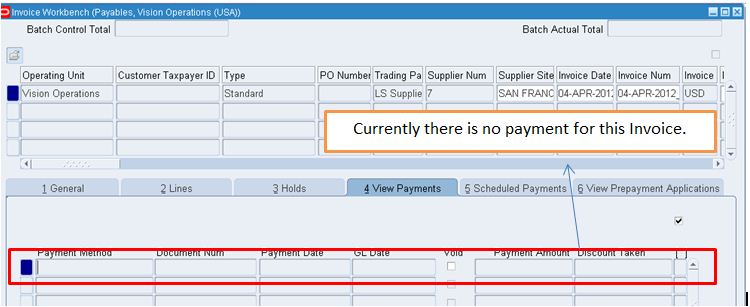
 Click on View Payments Tab to see the all the payments for the invoice.


 Click Scheduled payments Tab to see all scheduled payments. In our example, we created invoice on 04-Apr-2012 and Invoice Due date / Payment dare also 04-Apr-2012. System will calculate the invoice due date based on payment terms and in our case we used payment terms as "LS Terms". Lets a look into payment terms.


Technical part :

select * from AP_INVOICES_ALL where invoice_num = '04-APR-2012_1';

select * from AP_INVOICE_LINES_ALL where invoice_id = 211325;

select * from AP_HOLDS_ALL where invoice_id = 211325;

select amount_remaining, due_date, hold_flag from AP_PAYMENT_SCHEDULES_ALL where invoice_id = 211325;


SELECT distribution_line_number, line_type_lookup_code, amount, po_distribution_id, amount_to_post from AP_INVOICE_DISTRIBUTIONS_ALL  where invoice_id = 211325;


***************************************************************
For Online And Classroom Training on 
R12 SCM Functional
Fusion Procurement
Fusion SCM
Fusion Procure To Pay
Please Contact -
Gmail # rishitechnologies9@gmail.com
Cell # 9071883639

Friday, March 30, 2012

R12 - AP Payment Setups

1. Interest rates :

In the Payment Interest Rates window, you define interest rates Payables uses to calculate and pay interest on overdue invoices. Payables calculates interest on overdue invoices only if you enable both the Allow Interest Invoices Payables option and the Allow Interest Invoices option for the supplier of an invoice.

(N)>Setup>Payments>Interest Rates

 select * from AP_INTEREST_PERIODS;

2. Bank Charge Calculation :

Use the Bank Charge Calculation window to specify charges associated with transferring money between banks. If you use Payables you specify charges between your remittance banks and your suppliers' banks. If you use Receivables you specify charges between your customers' banks and your banks. You can define charges.

 (N)>Setup>Payments>Bank Charges Calculations.


 select * from AP_BANK_CHARGES ;

select * from AP_BANK_CHARGE_LINES;

3. Bank and Bank Branches Creation  :

(N)>Setup>Payments>Bank and Bank Branches.


Click on Banks --> Create


Click Save and Next -- > Click on create to create Bank Address --> Enter required fields and click on Apply.


Click Save and Next  -->  Click on Create Contact to Create contact person/info --> Enter all the required info. We can create any number of contacts by clicking on Add Another Row.
 
Click on Finish.

 Click on Create Branch to create Bank Branches.

 
***************************************************************
For Online And Classroom Training on 
R12 SCM Functional
Fusion Procurement
Fusion SCM
Fusion Procure To Pay
Please Contact -
Gmail # rishitechnologies9@gmail.com
Cell # 9071883639